
Webmail Migration
Mascon is in the process of transitioning your email account to a TELUS platform powered by Google. This transition will be completed in the coming months and there is no additional cost for this upgrade to your email experience.
What This Upgrade Means For You
Capacity and Security: With email in enterprise-grade Google Workspace, you will benefit from enhanced security, increased reliability, and 15 GB of storage.
Privacy Assured: Your data will be under the governance of TELUS’s stringent privacy protocols. You will not receive ads on your email (unlike the publicly available Gmail) and you will continue to get support directly from TELUS. For more details, see telus.com/privacy.
Email Address: Your existing email address will be migrated to the new platform and you will continue receiving mail under your existing email address through Gmail.
Email existing in your account: It is suggested that you save or backup important data from your email address.
How to Migrate Your Webmail Email Account to GMAIL
Access Instructions at telus.com/SetUp
Exporting Contacts from Webmail
This manual provides step-by-step instructions for clients and support staff (CSR/TSR) on how to export contact information from Mascon Webmail. For demonstration purposes, this guide uses Google Chrome as the browser and the @cablelan.net domain in the provided examples.
Section 1.0.0 – Accessing the Webmail Login Prompt
This section of the guide will detail the process of accessing the webmail login prompt, this step is necessary in order to access their webmail account and its related features.
Open a Chrome\Firefox\Safari\Other web browser (Google Chrome is used in the following example images).
Locate the URL bar (generally located towards the upper left corner of the browser screen).

Enter in the website address of: ‘webmail.cablelan.net’ and press the ‘Return\Enter’ key on the keyboard.

The Login page will appear on screen. Enter in the username as your email address, but without the domain (instead of ‘example@cablelan.net’, it would just be ‘example’). Then enter in the current password (if you are unsure of your current password, or are unable to login, please reach out to technical support at 1-866-832-6020 to speak to a representative for assistance).
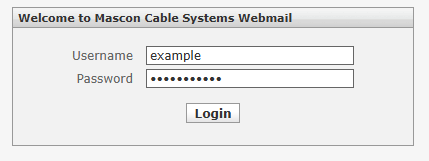
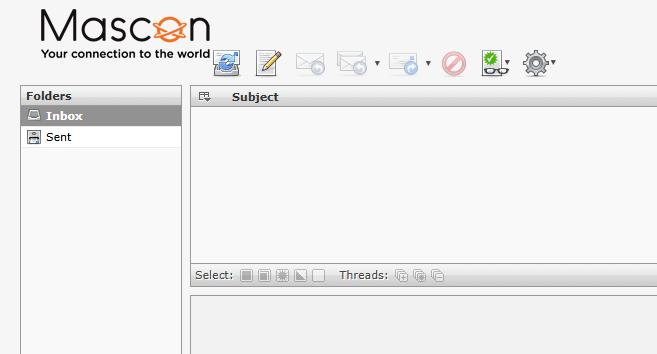
Click on the ‘Login’ button. Upon successful login, the website will change to load the email inbox for the given username.
Section 2.0.0 – Downloading\Exporting Contacts
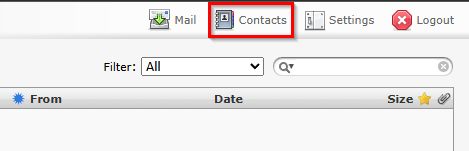
Look towards the top right corner of the ‘Inbox’ screen, and locate the ‘Contacts’ button. Click on it.
The ‘Contacts’ screen will appear, and list any contacts saved to the Webmail server.
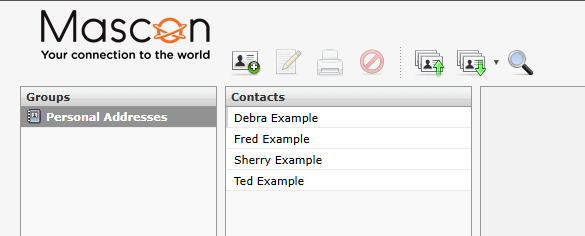
Locate the ‘Export contacts in vCard format’ button and click on it.
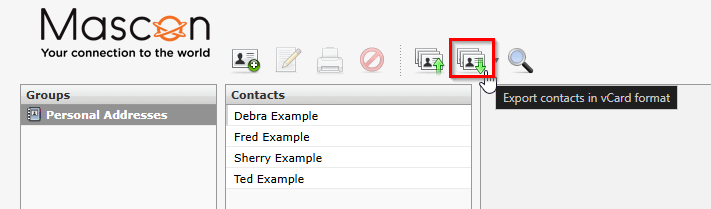
This will download the contacts address book as ‘contacts.vsf’. It may also show a ‘Save as’ window prior to downloading the file, to allow the client to specify a file name and location to save the .vcf file.

NOTE: .vsf format is the only format that can be exported from webmail, .csv and other formats are not available.
You may now use the .vcf file with an email application that supports its importation.
If you get any errors or run into issues with the process, please contact technical support at 1-866-832-6020.